Can an app estimate nutrition from a photo?
Yes. DoseDyno uses cloud AI to identify visible foods and estimate their photographed portions, calories, protein, carbohydrates and fat. A successful meal analysis saves a food record automatically. You then review the foods and adjust how much you ate. These are estimates, with no fixed accuracy guarantee. Hidden ingredients, cooking methods and an uncertain serving size can change the result.
From one photo to a food log
- Frame the meal.Take a photo or select one in the app. Include the whole dish or the separate dishes you want to record, keep food visible, and avoid glare or deep shadows.
- Let the analysis finish.DoseDyno processes the image through its cloud service. It identifies food items and estimates nutrients for the photographed amounts. An unsupported or failed analysis may require another photo.
- Open the saved result.Successful meal results are added to your log automatically. Open the result or the food history to check the menu items and their estimated nutrition.
- Adjust your consumed portions and save.Review what you actually ate. Saving a portion change updates that meal and the daily totals. Changing an existing portion does not require a new photo scan.
What should you review after analysis?
Start with the food itself, then check the amount. A plausible calorie total can still come from a mistaken food or serving estimate.
- Food identity: check whether the detected dishes match the meal. Mixed foods may appear as a whole dish when their ingredients cannot be separated reliably.
- Photographed amount: check whether the estimate describes what was on the plate. A photo does not establish weight or volume precisely.
- Consumed amount: select none, ¼, ½, ¾ or all of the photographed portion for a menu item. Detailed records also allow ingredient-level portion changes.
- Known nutrition: when you have more reliable values from a package or your recipe, use the available manual nutrition correction or manual food entry.
- Duplicate or missing records: review the day so repeated photos do not accidentally represent the same intake twice, and remember meals you did not photograph.
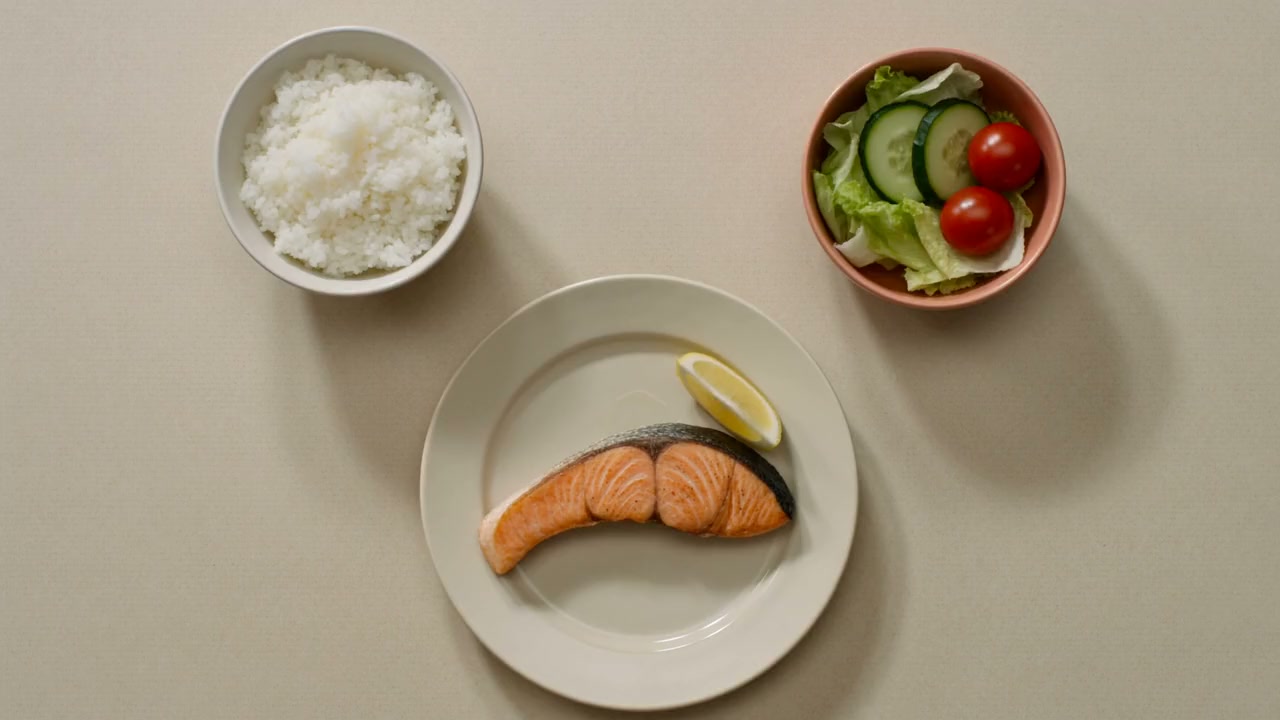
Open the rice menu item and select ½. Keep the salmon and salad at their own consumed amounts. The app recalculates nutrients from the saved estimate; this adjustment does not make the original photo estimate more precise.
Some older records do not contain detailed ingredient information. They may offer a whole-meal fraction instead. DoseDyno cannot reconstruct separate ingredients when neither a detailed result nor a usable source photo is available.
What can a meal photo miss?
A photo shows the surface of a meal. Several things that affect nutrition may remain unknown:
- Hidden ingredients: oil, butter, sugar, fillings and sauces can be hard to see or quantify.
- Exact serving size: camera angle, plate size, overlapping foods and containers can make an amount look larger or smaller.
- Recipe and preparation: similar-looking dishes can use different ingredients and cooking methods.
- Unseen intake: drinks, second servings, leftovers and snacks outside the frame are not automatically known.
- Allergens and supplement safety: an image cannot reliably confirm all allergens, rule out interactions or determine a suitable dose.
Use photo estimates to support a food record, and check important details against the actual food, recipe or product label. DoseDyno does not provide laboratory measurements, medical diagnoses or a guarantee that a meal or supplement is safe for you.
How supplement labels and bottle counts work
The scanner reads visible label information
Photograph a clear Supplement Facts panel or an explicit dietary supplement label. DoseDyno can extract a product name, nutrient amounts, serving details and printed package count for review. Prescription and over-the-counter medicines are not supported by this supplement scanner.
Compare extracted amounts, units, serving counts and directions with the physical label. Actionable reminders and intake logging require supported, verified label information and a confirmed schedule. If verification is missing or the label indicates multiple daily servings that the stored schedule cannot represent, actions can remain paused.
Remaining count follows your records
A printed “120 capsules” is a package quantity. It does not prove that 120 capsules remain in an opened bottle. Check the starting count yourself. DoseDyno tracks the saved count and subtracts the units in a confirmed intake record; update the count when your actual inventory changes.
PRO can provide a structured review of verified dietary supplement labels, including which products were covered. It can flag combinations for pharmacist review, but it cannot establish that interactions are absent or prescribe a dose. Older or unverified items may be excluded until re-scanned.
What does the daily nutrition summary tell you?
The daily log combines recorded meals and supplements marked as taken. Free users can view a daily nutrition summary. PRO adds structured nutrition scores and trend reports based on available recorded nutrients and saved goals.
A score describes the logged data. An unlogged meal is missing from that picture, and an unknown nutrient is incomplete information. Check record coverage and estimated amounts before interpreting the score or comparing days. The summary does not measure your body's nutrient status or diagnose a deficiency.
Optional Apple Health access can add selected activity and sleep context and write supported nutrition records. You can skip that connection and still use the food and supplement log.
Free access, PRO and photo privacy
Photo analysis requires an internet connection and a signed-in account. Guest accounts cannot use cloud scans. For email sign-in, complete email verification when prompted.
How many photos can you scan?
The Free plan includes up to 3 photo scan attempts per day. PRO includes up to 25 photo scan attempts per day, plus structured nutrition scores, trend reports and verified-label combination review. The limits count scan attempts, not guaranteed successful food records. Free accounts may see a native ad while analysis runs; PRO accounts do not see those analysis ads.
PRO is available through weekly, monthly and yearly subscriptions. Check the current price, period and renewal terms in the app's App Store purchase screen. Prices depend on your region and selected subscription.
Where is a photo processed?
DoseDyno uses Firebase services and a server-side AI provider to process uploaded meal and label photos. It is not an on-device-only photo analysis service. Original analysis uploads are normally removed after processing; small food thumbnails may remain with the log. See the privacy policy for processing, retention, permissions and deletion.
Apple Health is optional. Reading selected information and writing nutrition require the relevant permissions; syncing selected health summaries into your DoseDyno account also requires consent. You can manage access in device settings and use the app without connecting Health.
Common questions about photo nutrition analysis
Can DoseDyno count calories from a picture?
It can estimate calories and nutrients from visible foods and photographed quantities. It cannot measure them exactly. Review the saved foods, portions and any known ingredients or label values before using the result in your food log.
Does DoseDyno know how much of the meal I ate?
No. The analysis estimates the amount photographed. You choose how much you consumed in the saved record: none, ¼, ½, ¾ or all. Detailed records can support separate menu and ingredient portions.
Can it identify hidden oil, sauces or allergens?
A photo cannot reliably reveal all hidden ingredients or their amounts, and it cannot confirm that food is free of an allergen. Check the recipe, product packaging or the person who prepared the food when those details matter.
Does a bottle photo count the pills remaining inside?
No. DoseDyno reads visible printed label details and tracks a saved inventory count. Check your actual starting quantity, confirm the serving details, record intake and update the count when needed.
Is a nutrition score a health diagnosis?
No. It summarizes available recorded nutrition and saved goals. It depends on the completeness and quality of your food and supplement records and does not establish your body's nutrient status.
Can I use it in Korean, and which devices are supported?
Yes. DoseDyno supports Korean and English. The App Store lists iPhone with iOS 17.0 or later and iPad with iPadOS 17.0 or later. Check the listing on your device for current compatibility and availability.
Product information and further help
This guide explains DoseDyno's product workflows and their limits. For current availability and purchase details, see the official App Store listing. For a question about your record, contact [email protected] or visit DoseDyno support.
iPhone · iOS 17.0+ / iPad · iPadOS 17.0+ · Free with in-app purchases